Export and formatting in Plotten: a complete guide
Most writing apps let you export your work. Plotten lets you control how it looks when you do.
Whether you are submitting a manuscript to an agent, building an ebook for self-publication, sending a screenplay to a producer, or printing a proof copy for yourself, the export needs to be right — not just in content, but in appearance. Plotten gives you the tools to handle all of these from one place, on Mac, iPad, or iPhone, without switching apps or fighting with templates.
This guide walks through every export format Plotten supports and the formatting controls behind them.
The formats
Plotten supports five export formats:- PDF — For print, proof copies, and submission-ready manuscripts
- EPub — For ebooks distributed on Apple Books, Amazon, Kobo, and other platforms
- HTML — For web publication
- DOCX — For editors, collaborators, or anyone who works in Microsoft Word
- FDX — For screenwriters who need to deliver in Final Draft format
Export profiles
Rather than giving you a blank set of options, Plotten starts you with pre-configured profiles that match common publishing scenarios. For novels, these include Manuscript, Print, EBook, Web, and Word Processor. For screenplays, there are PDF and FDX profiles with industry-standard formatting already applied.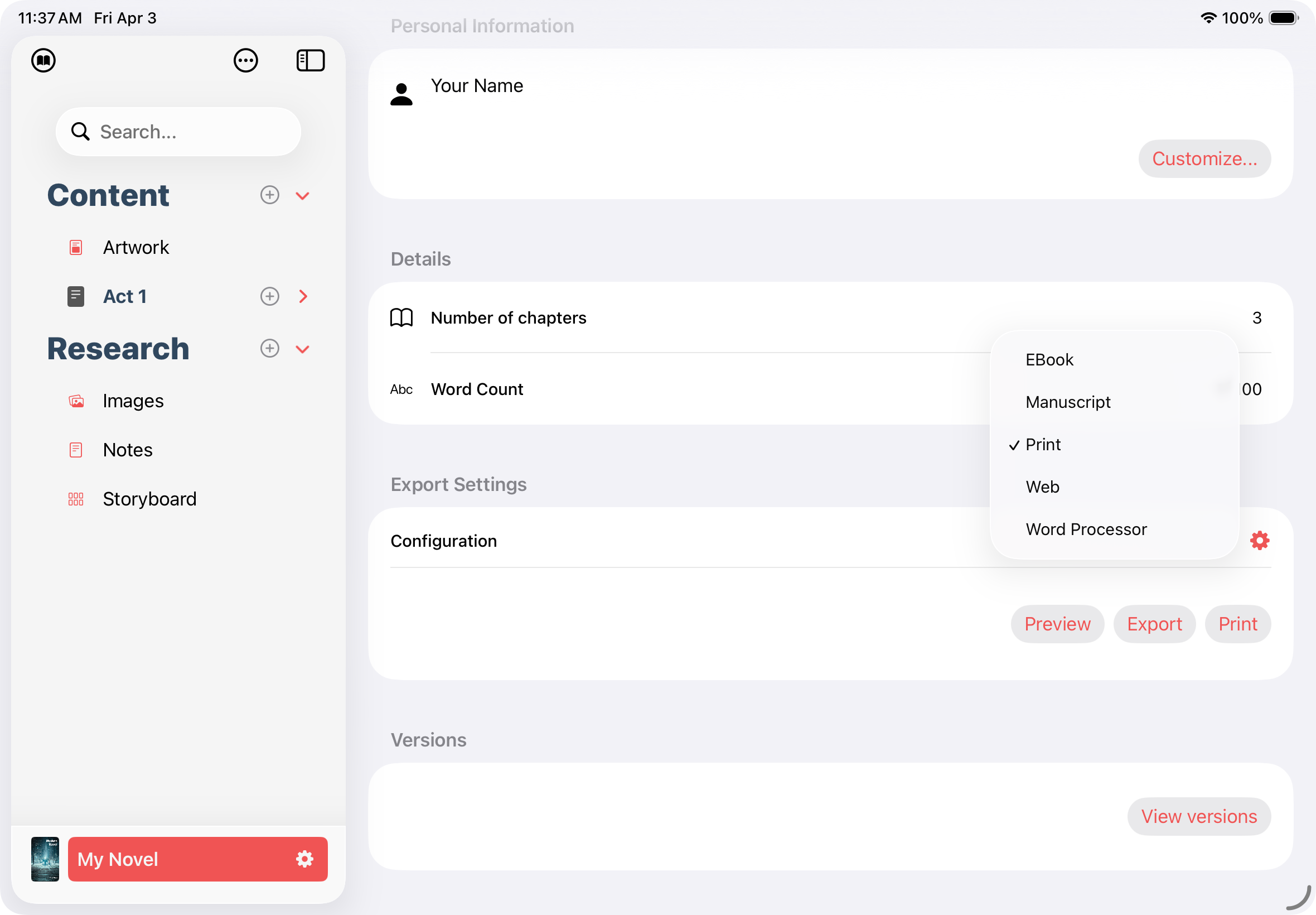
Each profile can be duplicated and customized. Your custom profiles are saved per-project, so different books can have different export settings.
Text styling controls
Every export profile includes a full set of text styling overrides, organized by content type — chapter titles, subtitles, body paragraphs, block quotes, verse, code blocks, and headings.For each, you can adjust the font family, size, and weight. You can set the text color. You can control alignment and spacing — line height, paragraph spacing, first-line indent, and kerning.
There are also formatting rules for bold, italic, underline, and strikethrough, with three options per style: Remove All, Keep Existing, or Add. This means you can strip all bold from chapter titles in your manuscript export while keeping it in your print layout.
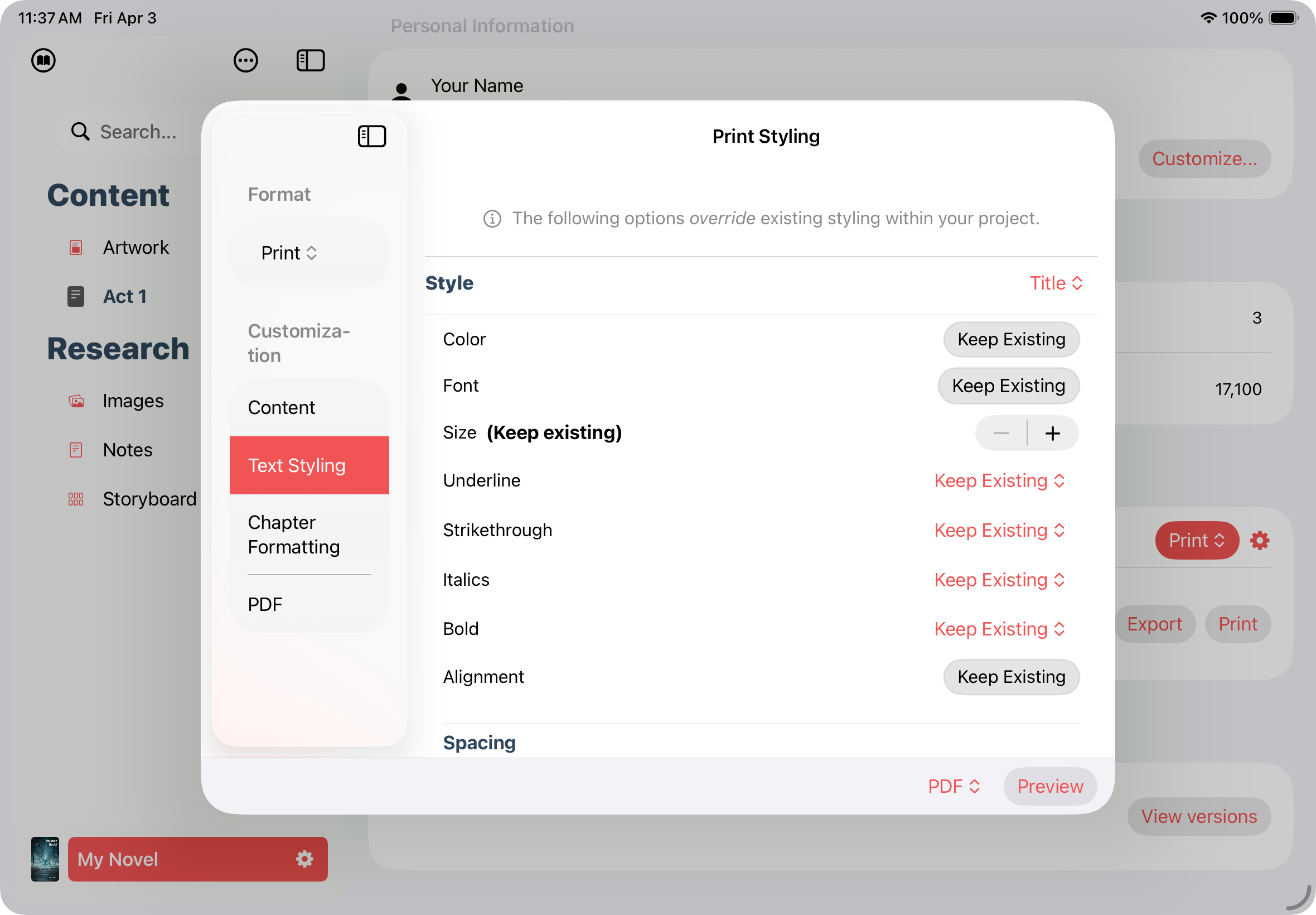
These controls apply across all export formats — PDF, EPub, HTML, and DOCX — so your typographic choices carry through every output.
PDF and print
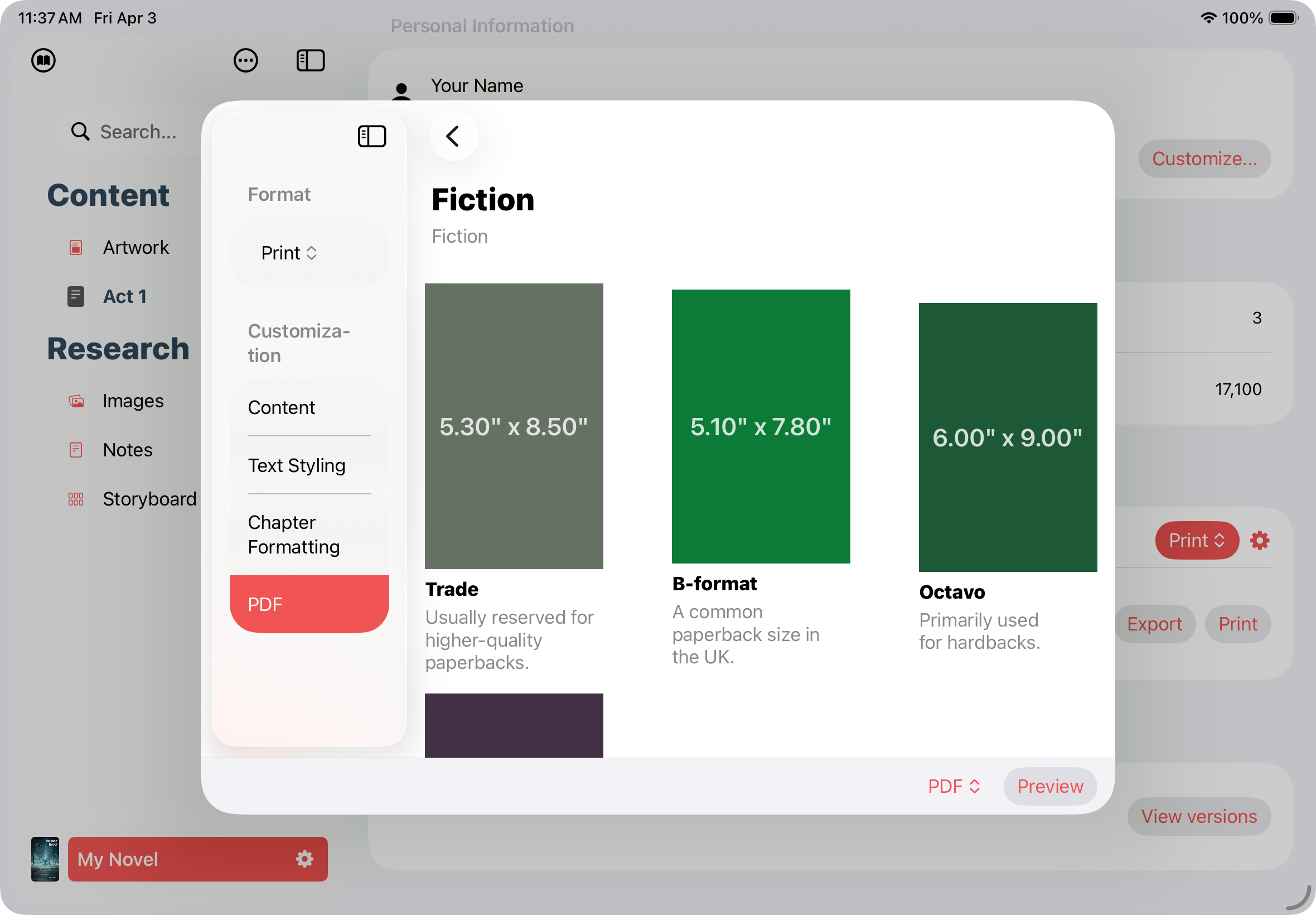
PDF export has the most configuration, because print demands precision.Page sizes — Plotten includes a library of standard book trim sizes used by print-on-demand services and traditional publishers, organized by category: fiction paperbacks, non-fiction, children’s books, and standard paper sizes like A4 and Letter. Choosing the right size from the start means your interior is correctly proportioned when it reaches the printer.
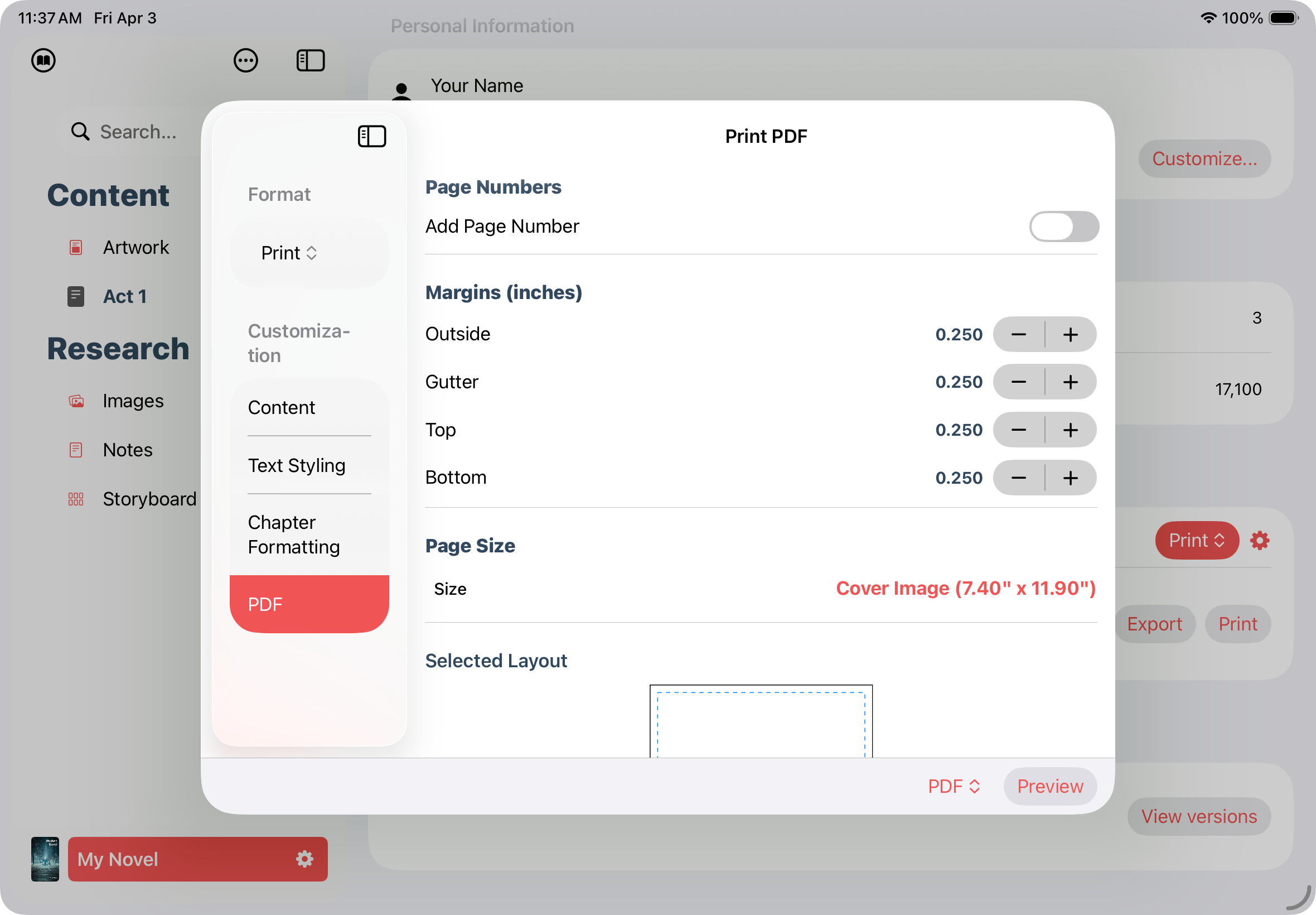
Margins — Set the outside, gutter (spine-side), top, and bottom margins independently. The gutter is wider so text is not lost in the binding.
Page numbers and headers — Toggle page numbers, choose the font, and control placement. Manuscript exports include a running header with your last name, title, and page number in the standard format agents expect.
Scene separators and chapter breaks — Customize the symbol used between scenes, and control whether chapters and scenes start on new pages.
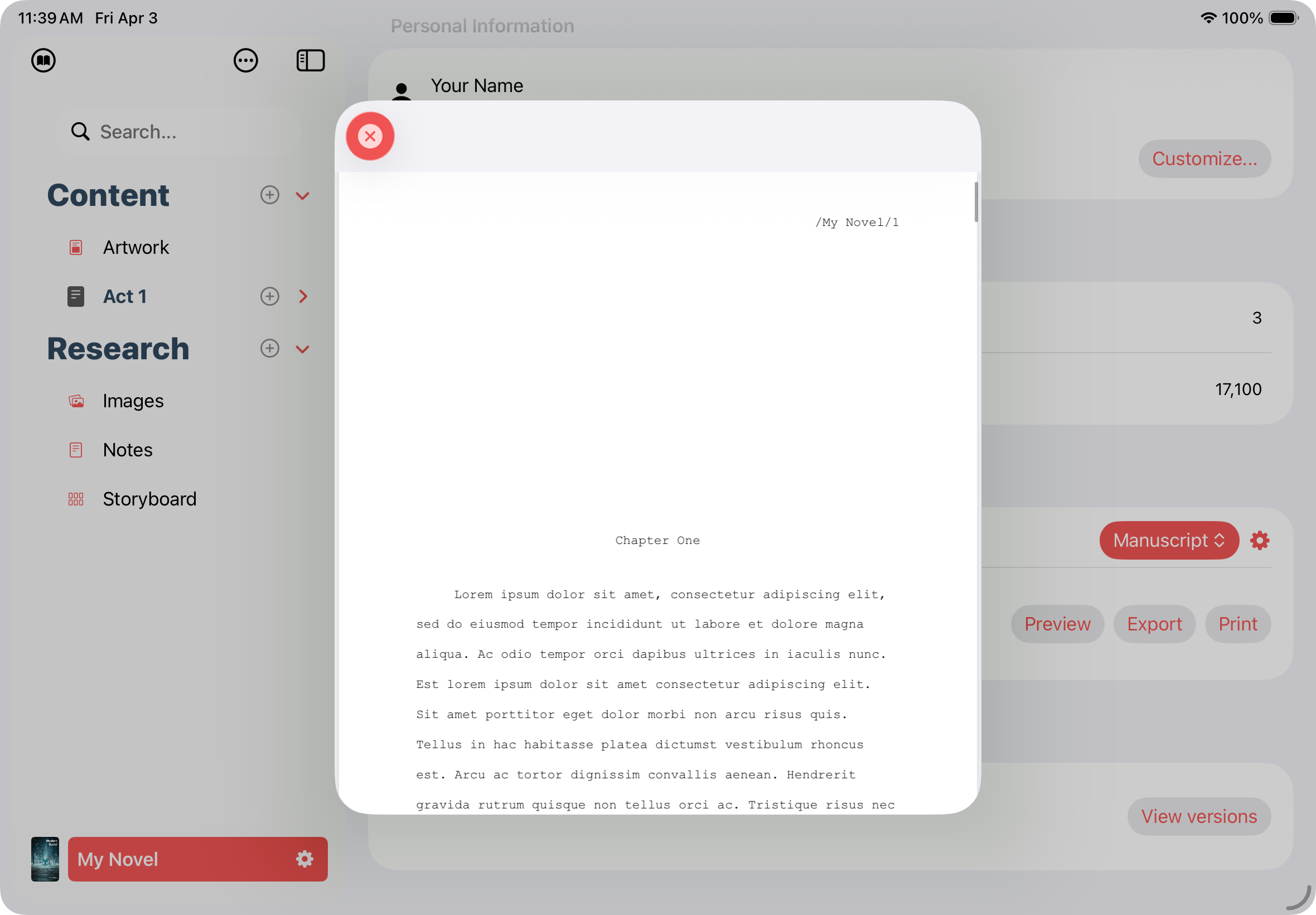
Manuscript export
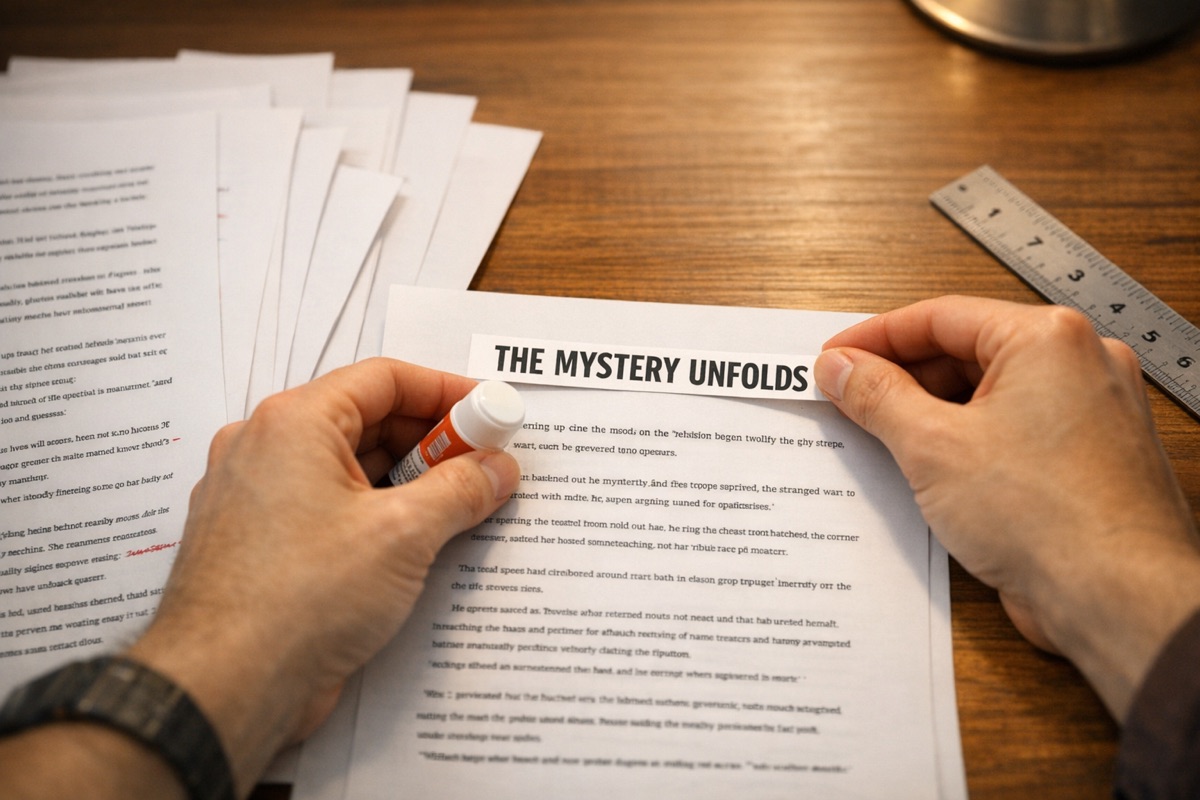
Manuscript format applies all the conventions agents and publishers expect in one step: monospaced font, double-spacing, standard margins, a title page with word count, a running header, and scene breaks marked with a centered hash. No images, no flourishes — just the clean, standard format that keeps the focus on your writing.If a specific agent or publisher has requirements that differ from the standard, duplicate the profile and adjust.
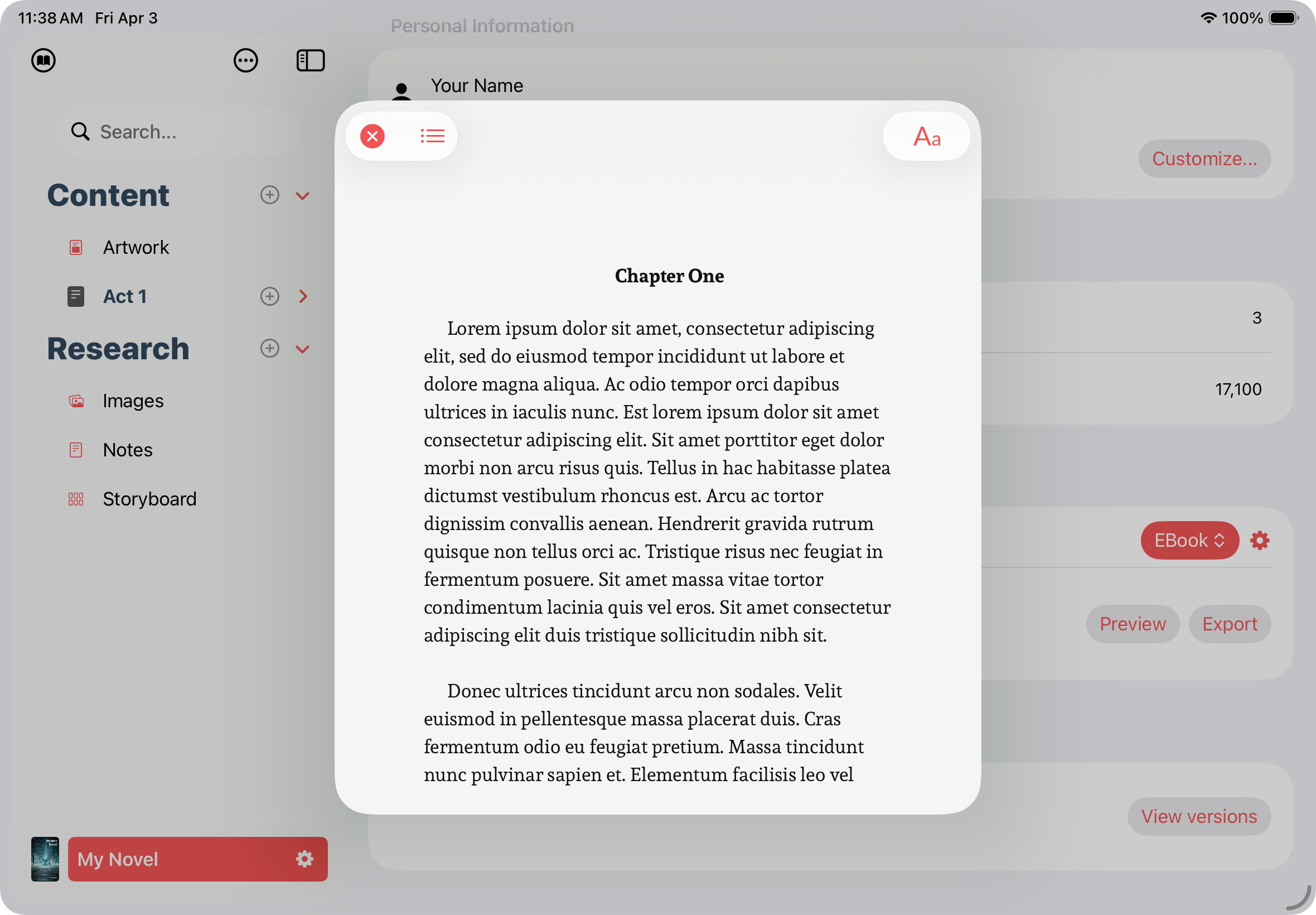
EPub and the built-in ebook reader
Plotten generates a properly structured EPub with chapter-based navigation, your cover artwork, embedded images, and your text styling applied.What sets this apart is the built-in ebook reader. After exporting, you can preview your EPub directly inside Plotten — on your Mac, iPad, or iPhone — to check that everything looks right before distributing. You see the book the way a reader would see it, page by page, without transferring the file to another device.
FDX export for screenwriters
Plotten exports to FDX (Final Draft) format, which is still the standard the film and television industry uses to exchange scripts. Scene headings, action, character names, dialogue, parentheticals, and transitions are all mapped to the correct FDX element types. Your title page — including title, author credit, and contact information — is included automatically.The export produces a file that opens cleanly in Final Draft and other FDX-compatible applications.
HTML and DOCX
HTML generates a responsive web page containing your full text, with images in a companion directory. Clean, self-contained, and ready to host.DOCX produces a Word file with formatting and title page graphics preserved — the format to use when a collaborator or publisher asks for a Word document.
Draft management
Before exporting, you choose exactly which parts of your project to include. Toggle individual acts, chapters, and scenes in or out. This is useful for sending a partial manuscript with a query, excluding unfinished scenes, or building different versions for different readers.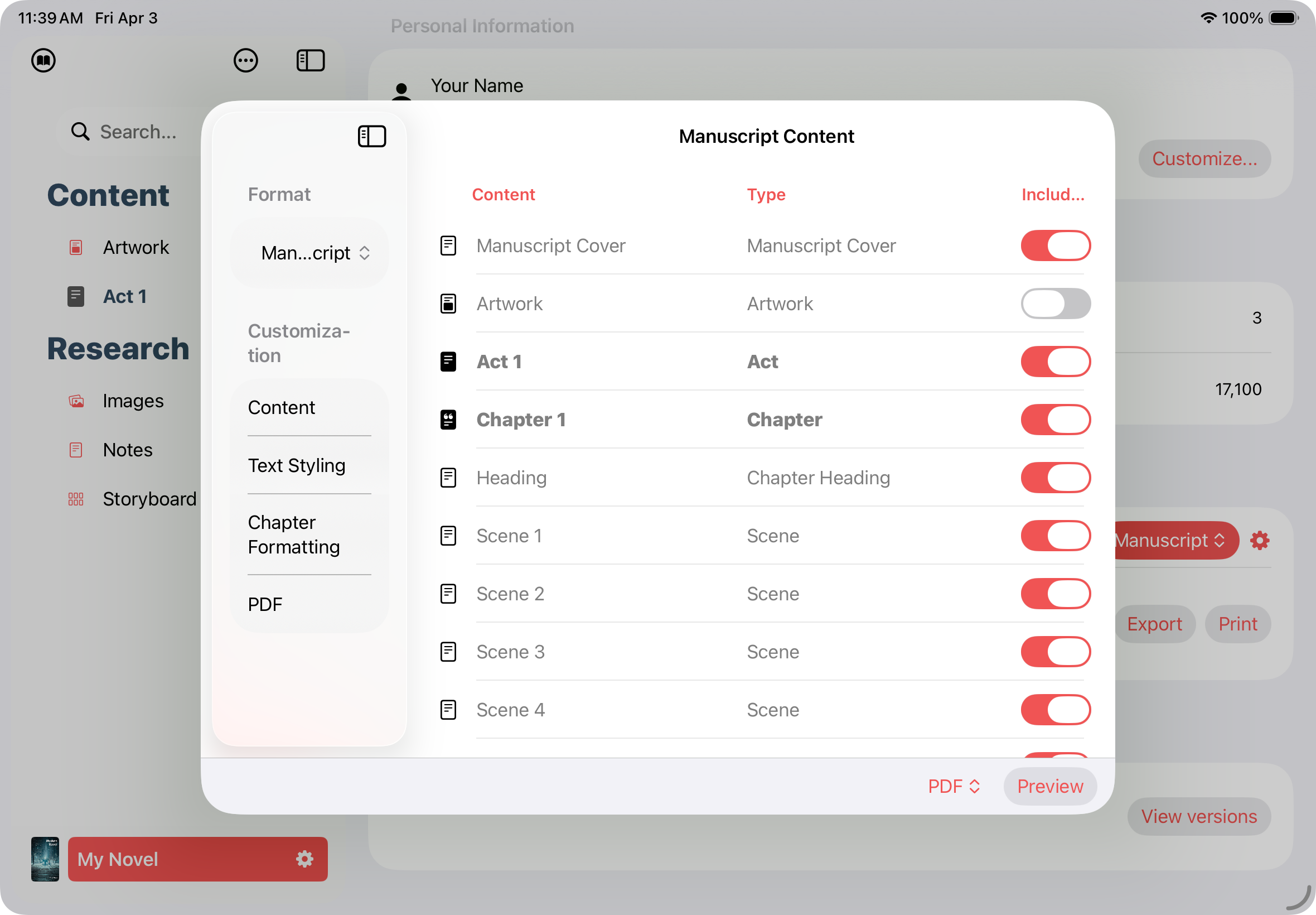
One project, every output
Export is where a writing app either respects your work or loses control of it. Plotten treats it as a first-class part of the process. The same project that holds your draft, your research, your outline, and your cover design also produces the finished files you send into the world — from your Mac, iPad, or iPhone.Write it once. Export it exactly the way it needs to look.